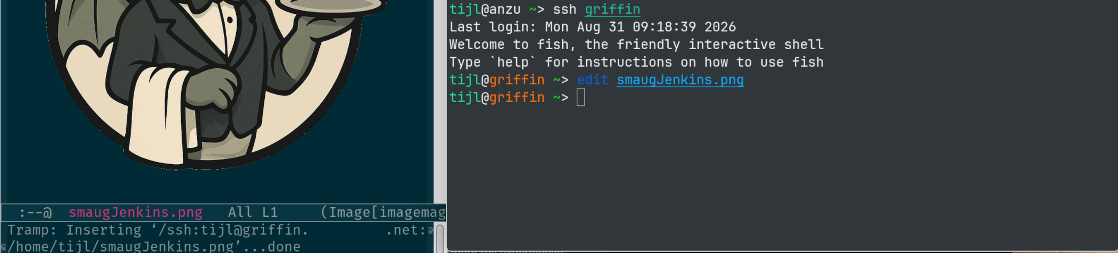
I work a lot on remote servers using SSH. Emacs makes it easy to open files from within an SSH session and have them appear on your local desktop. But you might prefer another editor, or perhaps you need to open a file that Emacs does not support. I created remote-open: a Python script that provides a similar workflow while letting you choose which applications open the files. More on that further down. First, a little demo. Then I’ll explain the Emacs setup. If you want to skip Emacs, you can scroll down to the section about remote-open.
In the demo, I use remote-open to open a PDF in the Gnome Document Viewer and to use Kompare from git diff. I also edit a text file using Emacs.
Setting up Emacs for opening remote files
If you use Emacs, you probably know about
TRAMP. TRAMP allows you to open remote
files using a URL such as /ssh:user@host:/path/on/remote/server. You might
also know
emacsclient,
which opens files in an already running Emacs instance. Combined with Unix
domain socket forwarding over SSH, these features let you open remote files
from within an SSH session and have them appear in Emacs on your desktop.
Most of the Emacs features we’ll use here have been around for a long time. To tie them together as described here, you’ll need at least Emacs 27.1. I’ve tested this with Emacs 29.4 on the remote machine and Emacs 31.1 on my desktop.
Local configuration
If Emacs is not yet configured to start the server, add this to
~/.emacs.el:
(require 'server)

(unless (server-running-p)
  (server-start))
Before configuring SSH, find the socket directory used by your running Emacs.
Evaluate M-: server-socket-dir RET in Emacs. On many Linux systems it prints
/run/user/<uid>/emacs, but the location depends on your system and Emacs
configuration. The default server socket is named server inside that
directory.
Next, configure SSH to forward the socket. Put this in your ~/.ssh/config,
replacing the placeholders and the local socket path:
Host <server_name>
    HostName <remote_host>
    User <remote_user>

    ControlMaster auto
    ControlPath ~/.ssh/control-%C
    ControlPersist 10m

    RemoteForward /home/<remote_user>/.emacs-desktop.socket /run/user/<uid>/emacs/server
    ExitOnForwardFailure yes
<server_name> can be anything you choose. You must connect using
ssh <server_name> for this configuration to apply. Replace the second path
on the RemoteForward line with the socket path you found above.
The Control* settings allow multiple SSH sessions to share one master
connection and one forwarded socket. After the last session disconnects, the
master and its forward remain for the ControlPersist period.
In my experience, you don’t need to open Emacs before making the SSH connection. But Emacs does need to be running before you can invoke emacsclient.
Remote configuration
The remote machine needs emacsclient, StreamLocalBind settings for sshd, and two environment variables.
Configure these options in /etc/ssh/sshd_config. They will limit the socket to your user only, and tell sshd it can remove a lingering socket path from an earlier session before creating the new socket:
StreamLocalBindMask 0177
StreamLocalBindUnlink yes
Validate the configuration and reload sshd. Then check that the reported streamlocalbind values match what you configured:
sudo sshd -t
sudo systemctl reload sshd
sudo sshd -T | grep '^streamlocalbind'
The environment variables
tell emacsclient where to find the forwarded socket and how to translate
remote paths into TRAMP paths. Use the same SSH alias as above so TRAMP also
uses its host, port, and proxy settings:
export EMACS_SOCKET_NAME="$HOME/.emacs-desktop.socket"
export EMACSCLIENT_TRAMP="/ssh:<server_name>:"
EMACSCLIENT_TRAMP is the prefix that emacsclient adds to file names so the
desktop Emacs knows they belong to the remote machine.
You can now run emacsclient <file_name> or
emacsclient -n <file_name> from within your SSH session, and the file will
open in Emacs on your local machine. It isn’t limited to text: it works for any
file Emacs can display, including images.
You might want to define an edit alias:
alias edit="emacsclient -n"
You can also set EDITOR, which programs such as Git use to edit commit
messages. Do not use -n here: the calling program needs emacsclient to wait
until you finish editing. In Emacs, run server-edit, normally bound to
C-x #, to mark the buffer as done and let emacsclient return.
export EDITOR="emacsclient"
Open remote files without Emacs
The setup above is very convenient, but it only works with Emacs. I wanted the same workflow with other desktop applications.
For this I wrote remote-open, a small Python script that runs on both machines. On the remote machine it sends a file path through a forwarded Unix socket. On the desktop, a bridge turns that path into an SFTP URL and passes it to the configured application.
For example, running this on the remote machine:
remote-open edit notes.txt
can start this on the desktop:
kate sftp://alice@example.net/home/alice/notes.txt
The application commands come from a configuration file on the desktop.
Installing remote-open
You’ll need Python 3 on both machines, OpenSSH with Unix socket forwarding,
and applications that can work with SFTP URLs. The open operation also uses
the file command on the remote machine to determine the MIME type.
Clone the repository on your desktop, then install the script there:
install -Dm755 remote_open.py ~/.local/bin/remote-open
Install the same script on every remote machine where you want to use it:
ssh <server_name> 'install -d -m755 "$HOME/.local/bin"'
scp remote_open.py <server_name>:.local/bin/remote-open
ssh <server_name> 'chmod 755 "$HOME/.local/bin/remote-open"'
The repository contains a systemd user service and an example configuration. Install both on the desktop:
install -Dm644 contrib/remote-open.service ~/.config/systemd/user/remote-open.service
install -Dm644 examples/config.json ~/.config/remote-open/config.json
Now edit ~/.config/remote-open/config.json. Add an entry for every remote
machine. This is an example for KDE:
{
  "targets": {
    "work": {
      "url_prefix": "sftp://alice@work.example.net"
    },
    "home": {
      "url_prefix": "sftp://alice@home.example.net"
    }
  },
  "commands": {
    "open": ["kioclient", "exec", "{url}", "{mime_type}"],
    "edit": ["kate"],
    "edit_wait": ["kate", "--block"],
    "diff": ["kompare", "-c"],
    "diff_wait": ["kompare", "-c"]
  }
}
The target names must match the REMOTE_OPEN_TARGET
variable we’ll set later.
The command entries select the desktop applications. open uses KDE’s
default application for the MIME type, edit starts Kate, and diff starts
Kompare. edit_wait and diff_wait are the blocking variants used by programs such as Git. The commands configured for edit_wait and diff_wait must remain running until the application is finished.
You can leave out operations you don’t need.
Start the bridge on the desktop:
systemctl --user daemon-reload
systemctl --user enable --now remote-open.service
Forwarding the socket
The SSH setup is almost the same as the Emacs setup. Add a block like this to
~/.ssh/config on the desktop:
Host <server_name>
    HostName <remote_host>
    User <remote_user>

    ControlMaster auto
    ControlPath ~/.ssh/control-%C
    ControlPersist 10m

    RemoteForward /home/<remote_user>/.remote-open.socket /run/user/<uid>/remote-open.sock
    ExitOnForwardFailure yes
Replace <uid> with the output of id -u on the desktop. The remote path is
the socket that the command-line client will use. The local path is the socket
created by the systemd service.
The remote machine needs the same two StreamLocalBind options in sshd_config as in the Emacs setup. Check the Emacs section for the exact changes.
Now you can connect using the configured name, and set the target name on the remote machine:
ssh <server_name>
For Bash, add this to
~/.bashrc:
export REMOTE_OPEN_TARGET="work"
Use the target name that corresponds to this machine in the desktop configuration.
Opening files
You can now open files from the remote shell:
remote-open edit notes.txt
remote-open edit one.txt two.txt
remote-open diff old.txt new.txt
remote-open open report.pdf
remote-open open photo.jpg song.flac
edit accepts files that don’t exist yet, provided the parent directory exists. Kate opens the SFTP URL and creates
the remote file when you save it. diff requires two existing files or
directories.
You can configure git to use the blocking versions of edit and/or diff:
git config --global core.editor 'remote-open edit --wait'
git config --global diff.external 'remote-open diff --wait'
If you use a coding agent, you’ll want to tell it to call git diff with the --no-ext-diff option. This will override the diff tool you set in git config.
And you can of course set aliases like in the Emacs setup described above. I use:
alias ropen="remote-open open"
alias redit="remote-open edit"
alias rdiff="remote-open diff"
Combine Emacs with remote-open
But what if you like to edit text files with Emacs, but want to open PDF files in Okular (or any other application)? Just include both RemoteForward lines in your ~/.ssh/config:
Host <server_name>
    HostName <remote_host>
    User <remote_user>

    ControlMaster auto
    ControlPath ~/.ssh/control-%C
    ControlPersist 10m

    RemoteForward /home/<remote_user>/.remote-open.socket /run/user/<uid>/remote-open.sock
    RemoteForward /home/<remote_user>/.emacs-desktop.socket /run/user/<uid>/emacs/server
    ExitOnForwardFailure yes
How do you handle authentication?
I use SSH keys, with ssh-agent to cache the keys for me. This works so seamlessly, that it took a question on LinkedIn before I realized authentication is something I should mention here.
You don’t need ssh-agent. You don’t necessarily need SSH keys either. But to me, it feels like an acceptable compromise between usability and security. It’s certainly better than typing your password in the url_prefix of your config.json. (That should work too, but I certainly don’t recommend it).
Just keep in mind, ssh-agent works with Unix sockets (or with named pipes on Windows). Any process that runs under your user gets access to ssh-agent. If you don’t want your AI agent to access your server, run it under a different user account.
How about Windows and macOS?
Linux is where I do my daily work, and that’s so far the only system I’ve tested this on. I expect it will work on macOS as well, if you find a macOS equivalent for the systemd unit (LaunchAgents?).
Native Windows is currently not supported. The blocker here is the Unix-domain socket. Unix sockets support file system permissions, which is why I use them here. The Windows equivalent would be named pipes, and it is possible to communicate between named pipes and Unix sockets. But you would still need forwarding over SSH, and the ticket for that feature is still open after ten years.
You could use TCP sockets instead. If that socket only accepts localhost connections, that might be good enough for your application. But be aware this means other users on the system can also connect to it.
Either way, you would still need Windows applications with support for SFTP URLs. That’s less common in the Windows world.